Debugging Techniques in C#
Learn debugging techniques in C# using breakpoints, watch windows, and step tools to quickly identify and fix issues.
In software development, debugging is a systematic process used to analyze unexpected program behavior and identify faulty code. In C#, tools like Visual Studio and Visual Studio Code provide powerful debugging features that allow developers to trace execution step by step, inspect variable values, and analyze the program’s flow.
Difference Between Debug and Release Mode
.NET projects have two main build configurations:
- Debug: Used during development. Contains symbols and additional information to make debugging easier.
- Release: Used for production. Optimizations are applied and debugging information is removed.
// In Visual Studio, selectable from the top menu:
// [Debug ▼] → [Release]
When running in Debug mode, the program can be executed line by line, giving full control over the code flow.
Breakpoints
A breakpoint is a marker that causes the program to pause execution at a specific line. The program runs until it reaches that line, allowing you to inspect the current values of all variables.
class Program
{
    static void Main()
    {
        int a = 5;
        int b = 0;
        int c = a / b; // Error: DivideByZeroException
        Console.WriteLine(c);
    }
}
In the example above, you can set a breakpoint on the line int c = a / b;
so that execution stops there and you can inspect the values of a and b in the “Locals” window.
Stepping Commands (Step-by-Step Debugging)
Visual Studio provides several shortcut keys to step through code during debugging:
- F10 – Step Over: Executes the current line without entering called methods.
- F11 – Step Into: Enters the called method on the current line.
- Shift + F11 – Step Out: Exits the current method.
- F5 – Continue: Runs the program until the next breakpoint.
These tools give you full control over the program’s flow and help identify exactly where an error begins.
Watching Variables (Watch & Autos Windows)
Visual Studio allows real-time tracking of variable values during debugging:
- Watch Window: Displays values of manually added variables.
- Locals Window: Automatically lists all variables in the current scope.
- Autos Window: Shows variables related to recently executed lines.
Hovering over a variable displays its current value in a tooltip popup.
Using Immediate and Watch Windows
The Immediate Window allows you to execute code directly during debugging. You can modify variable values or test short expressions without stopping execution.
// Example of Immediate Window:
// ? a + b
// ? myList.Count
// a = 25
This feature helps test calculations and adjust variable values without restarting the application.
Conditional Breakpoints
Sometimes you may want the program to stop only under certain conditions instead of every iteration. For this, you can use a conditional breakpoint.
for (int i = 0; i < 100; i++)
{
    Console.WriteLine(i);
}
After adding a breakpoint to this loop, open the “Conditions” menu and define
i == 50 — the program will now stop only when i equals 50.
Exception Settings
From Debug → Windows → Exception Settings, you can choose which types of exceptions should pause execution.
For example, you can make the debugger stop only for NullReferenceException or InvalidOperationException.
This helps prevent unnecessary breaks in complex applications.
Debugging Inside Try / Catch Blocks
Even when errors are caught inside a try / catch block,
Visual Studio can stop at the exact line where the exception occurs if “Break on User-Unhandled Exceptions” is enabled.
try
{
    int[] array = new int[3];
    array[5] = 10; // IndexOutOfRangeException
}
catch (Exception ex)
{
    Console.WriteLine("Exception caught: " + ex.Message);
}
This allows you to examine the application’s state just before the exception is thrown.
Using Debug.WriteLine()
The Debug.WriteLine() method writes informational messages to the Output Window during debugging.
It is useful for logging background information without changing the console output.
using System.Diagnostics;

class Program
{
    static void Main()
    {
        for (int i = 0; i < 3; i++)
        {
            Debug.WriteLine($"Step {i} completed.");
        }
        Console.WriteLine("Program finished.");
    }
}
These messages are only visible in Debug mode and do not appear in the Release build.
Logging and Error Tracking
Debugging is not only for real-time analysis but also for long-term application monitoring.
To achieve this, you can use logging libraries such as Serilog, NLog, or Microsoft.Extensions.Logging.
using Microsoft.Extensions.Logging;

class Program
{
    static void Main()
    {
        using var loggerFactory = LoggerFactory.Create(builder =>
        {
            builder.AddConsole();
        });
        var logger = loggerFactory.CreateLogger<Program>();

        try
        {
            int a = 10, b = 0;
            int c = a / b;
        }
        catch (Exception ex)
        {
            logger.LogError(ex, "An error occurred!");
        }
    }
}
Logging enables error tracking not only during development but also in production environments.
Example: Debugging User Login
The program will stop at the line where you place the breakpoint.
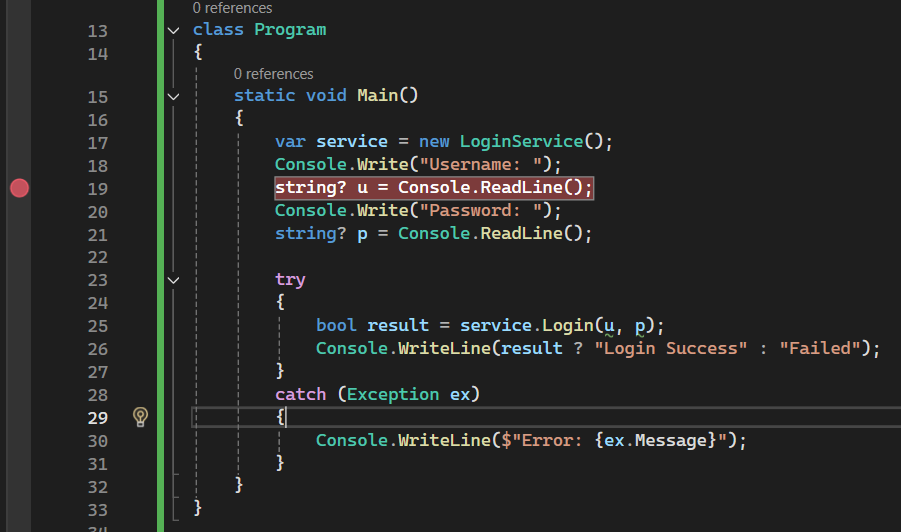
The following example demonstrates how to debug a user login issue step by step.
class LoginService
{
    public bool Login(string username, string password)
    {
        if (string.IsNullOrEmpty(username) || string.IsNullOrEmpty(password))
            throw new ArgumentException("Username or password cannot be empty.");

        return username == "admin" && password == "1234";
    }
}

class Program
{
    static void Main()
    {
        var service = new LoginService();
        Console.Write("Username: ");
        string? u = Console.ReadLine();
        Console.Write("Password: ");
        string? p = Console.ReadLine();

        try
        {
            bool result = service.Login(u, p);
            Console.WriteLine(result ? "Login successful" : "Invalid credentials");
        }
        catch (Exception ex)
        {
            Console.WriteLine($"Error: {ex.Message}");
        }
    }
}
You can place a breakpoint on any line and inspect variables step by step.
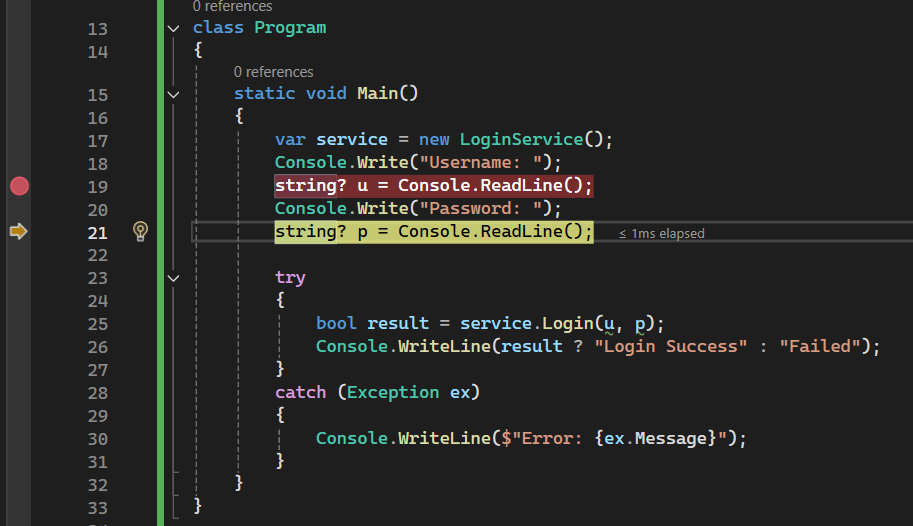
By placing a breakpoint on the return line, you can inspect the username and password values in real time
and analyze why the condition returns false.
Best Practices
- Instead of wrapping every line in
try / catch, handle exceptions in specific layers (e.g., UI or Service layer). - Use
Debug.WriteLineor a logging framework instead ofConsole.WriteLine. - Use “Step Over” instead of “Step Into” to avoid diving into unnecessary details.
- Use conditional breakpoints to focus on specific scenarios.
- Use Exception Simulation techniques to test error handling (e.g., invalid input, null values).
TL;DR
- Debugging: The process of tracing the program’s execution step by step to find errors.
- Breakpoint: Stops code execution at a specific line.
- Watch & Immediate: Tools for monitoring variables and executing code on the fly.
- Debug.WriteLine: Developer-specific log output (only in Debug mode).
- Logging: Records errors and events, useful in production environments.
- Conditional breakpoints: Allow the debugger to stop only under certain conditions, improving efficiency.
Related Articles
C# Exception Handling (try, catch, finally)
Learn how to handle exceptions in C# using try, catch, and finally blocks to manage errors safely with clear examples.
Reflection and Late Binding in C#
Learn Reflection and late binding in C# to inspect types at runtime and build flexible, dynamic applications.
Visual Studio / VS Code Tips for C#
Learn Visual Studio and VS Code tips for C# to improve productivity with shortcuts, extensions, and efficient workflows.