First C# Project
First console app in C# with Visual Studio 2022: usage of WriteLine, ReadKey, and ReadLine.
Visual Studio 2022 is one of Microsoft’s most powerful and comprehensive IDEs. With it, you can develop C#, .NET, ASP.NET Core, WPF, WinForms, Blazor, Xamarin/.NET MAUI, Unity game projects, and many other types of applications. The project creation wizard guides users step by step in choosing the right project type. As a first step, the most suitable choice to learn the fundamentals of programming is creating a Console Project.
Creating a New Console Project
Open Visual Studio 2022 and select File → New → Project from the menu.
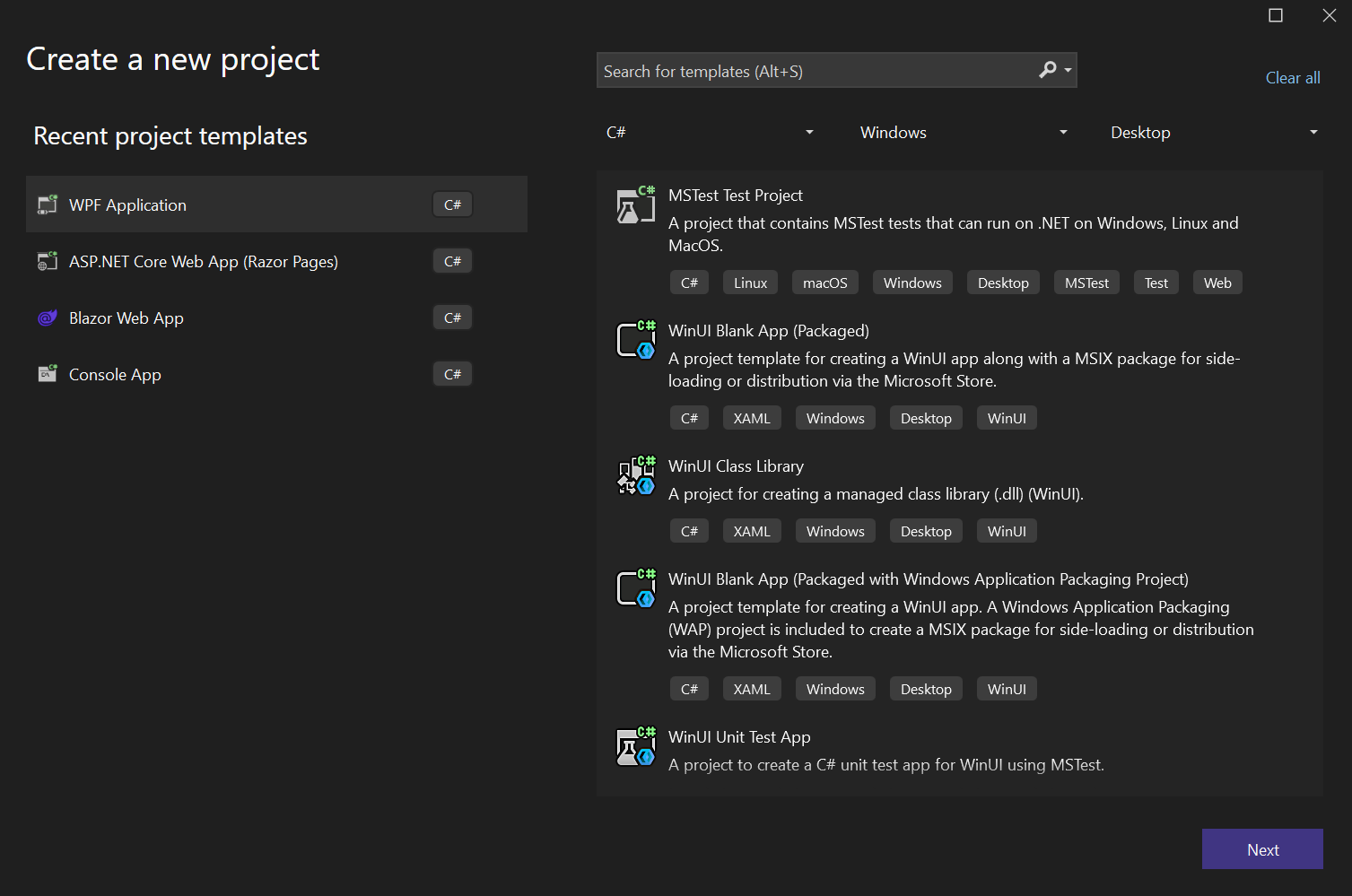
In the window that appears, type Console App in the search box and select the Console App (.NET 6/7/8) template.
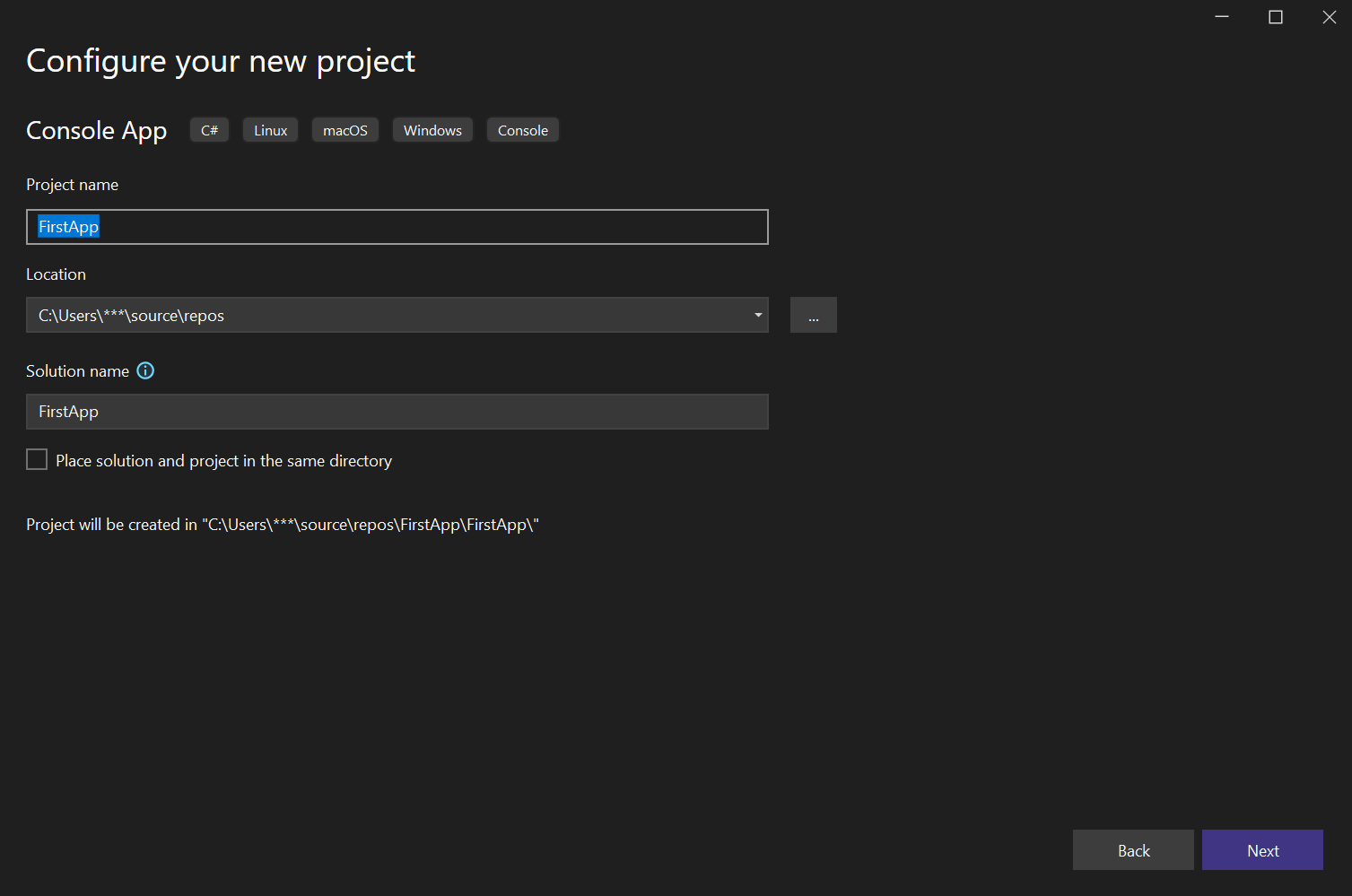
Set the project name to FirstApp and click Create.
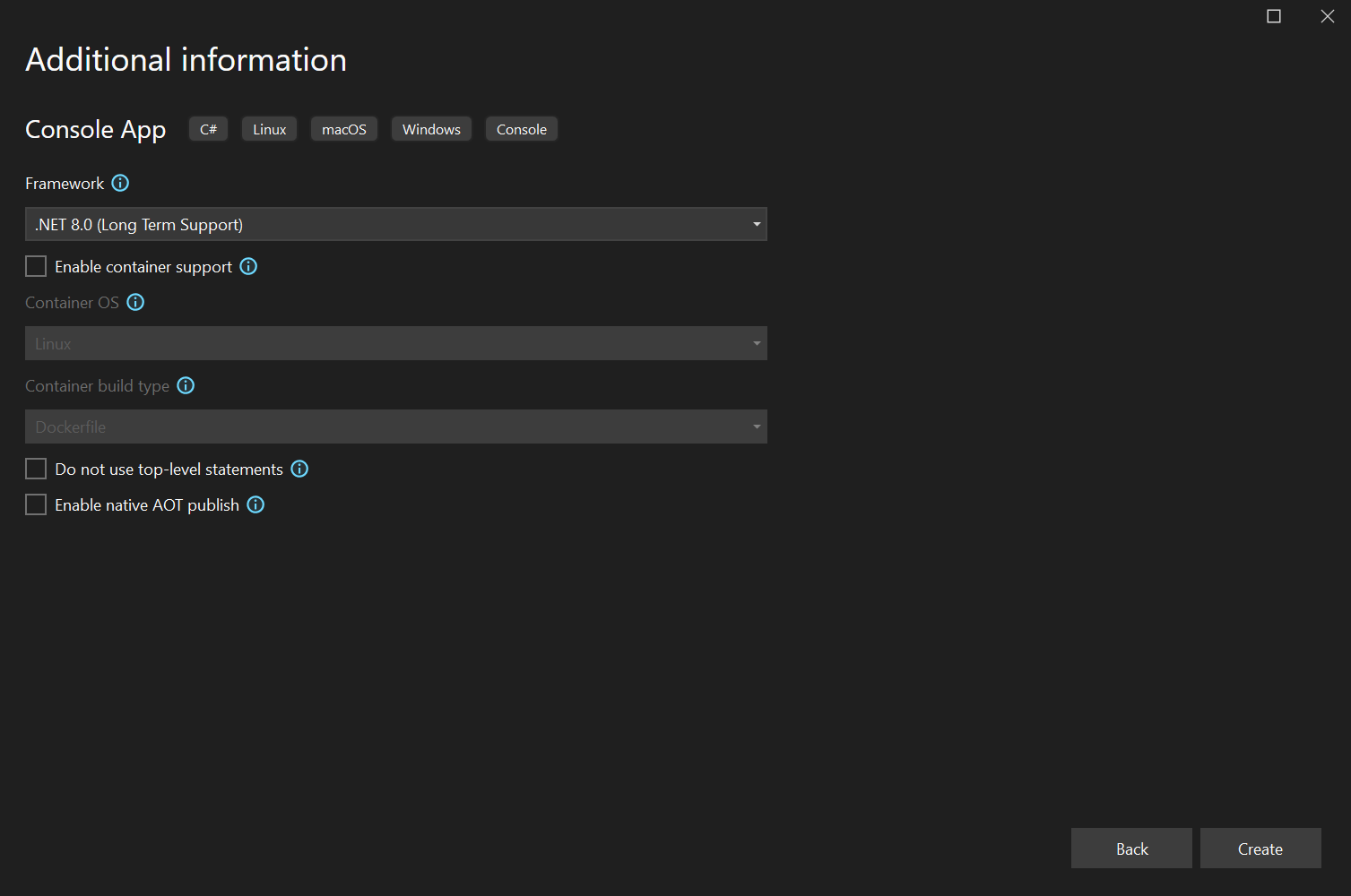
When creating the project, selecting .NET 8.0 (Long Term Support) allows you to benefit from the latest version of .NET with long-term update support.
Program.cs File
When the project is created, Visual Studio generates a Program.cs file for you. Its contents look like this:
using System;

class Program
{
    static void Main()
    {
        Console.WriteLine("My first console application!");
    }
}
Console.WriteLine()prints text to the console.Console.ReadKey()waits for a key press so the program does not close immediately.argsrepresents values passed to the program from the command line. For example, if you typeFirstApp.exe file.txt, the value "file.txt" can be accessed asargs[0].
Note: In recent .NET versions,
the Program.cs file can use
top-level statements.
In this example, the traditional Main method
is used to clearly demonstrate the program structure.
Running the Program
From the menu, select Debug → Start Without Debugging (or press Ctrl + F5). In the console window, you will see the following output:
My first console application!
The program will remain open until you press a key.
Using ReadLine
If you use Console.ReadLine(), the program will wait for you to enter some text. When the user types something and presses Enter, that text is returned as a string.
Console.Write("Enter your name: ");
string name = Console.ReadLine();

Console.Write("Enter your age: ");
string age = Console.ReadLine();

Console.WriteLine($"Hello {name}, you are {age} years old.");
Summary
At this stage, you have written your first console application with Visual Studio 2022. You learned the basics of console interaction with WriteLine, ReadKey, and ReadLine. Next, you will move on to variables and data types.
Related Articles
C# Console Commands
Learn how to work with the C# console by writing output, reading user input, and formatting text with practical examples.
Introduction to C# and the .NET Ecosystem
C# is a modern, safe, and object-oriented language. With the .NET ecosystem, it is possible to develop web, mobile, desktop, and game applications.